
Listing across channels
Decide which marketplaces each lot appears on, per lot or in bulk, and see where your inventory is listed at a glance.
Your Brick Pulse master inventory is the source of truth, and you don’t have to list every lot on every marketplace. BrickPulse lets you choose, per lot, whether it’s listed on BrickLink, BrickOwl, and/or eBay.
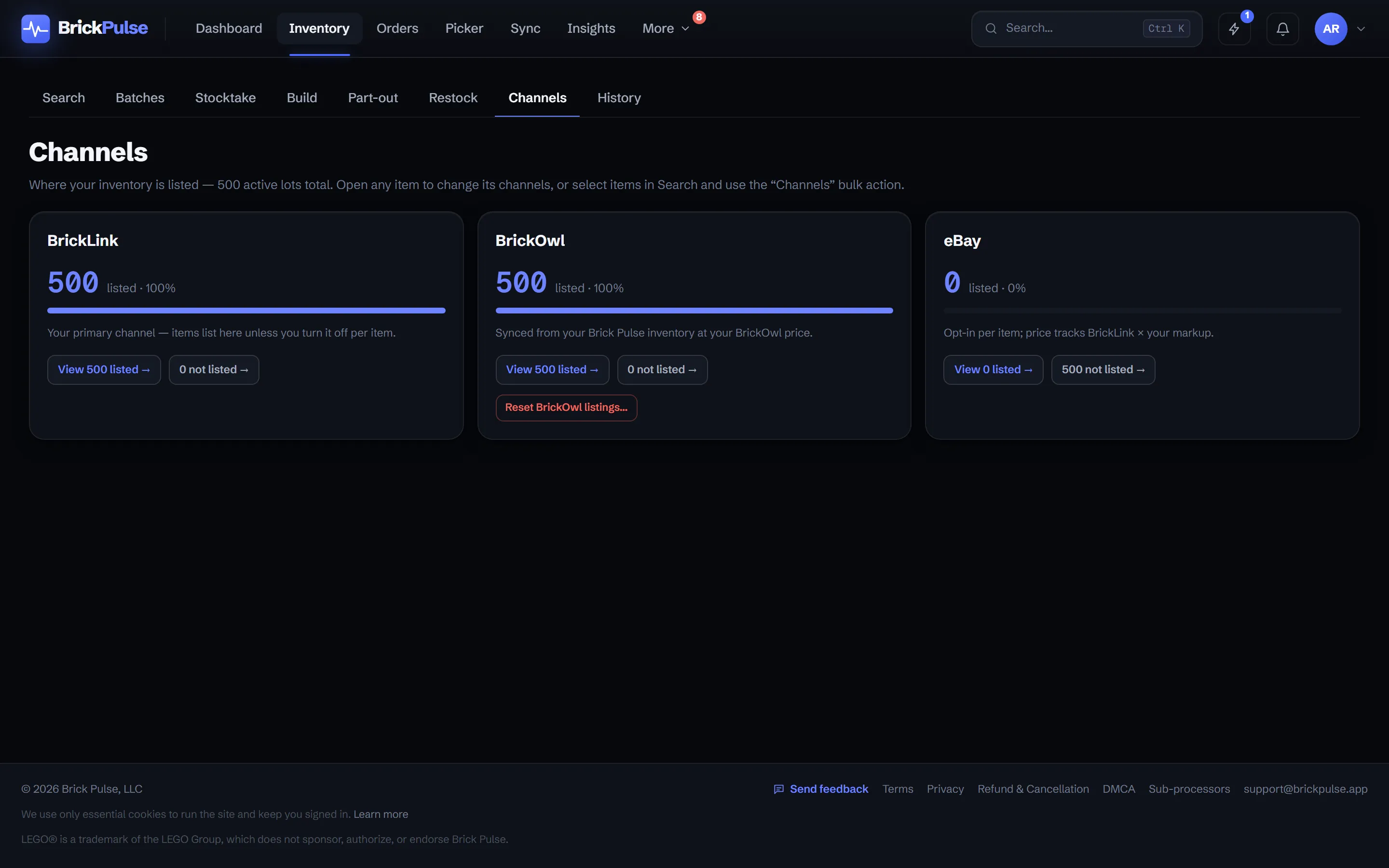
The Channels overview
Open Inventory → Channels for a per-marketplace summary of where your inventory is listed. Each channel shows how many lots are listed and how many are not listed, and each count links straight into a pre-filtered Search list so you can act on it.
Change a single lot’s channels
Open any lot and toggle the marketplaces it should be listed on. Turning a channel off removes that listing from the marketplace on the next sync. It does not delete the master lot, so your stock and its other listings are untouched. Turning it back on re-lists it.
Change many lots at once
Select lots in Inventory → Search and use the Channels bulk action to list or unlist the whole selection across the marketplaces you choose. This is the fastest way to, say, add your entire store to eBay or pull a category off BrickOwl.
Good to know
- Your Brick Pulse master inventory is where quantities and prices originate. Make changes in Brick Pulse and they flow out to the channels a lot is listed on. See How anti-oversell works.
- eBay prices are derived from your BrickLink price plus your configured markup. See eBay listing editor & auto-pricing.
- Unlisting is reversible: the master lot keeps its quantity, location, and history the whole time.