
Pricing rules
Layer ordered pricing rules over your base Market repricing, so different kinds of lots get priced their own way.
Pricing rules live on their own page (More menu → Pricing rules, route /pricing-rules). They sit on top of your base Market repricing, which stays in Settings. Use them when one blanket formula isn’t enough, say used minifigs should price differently from common parts.
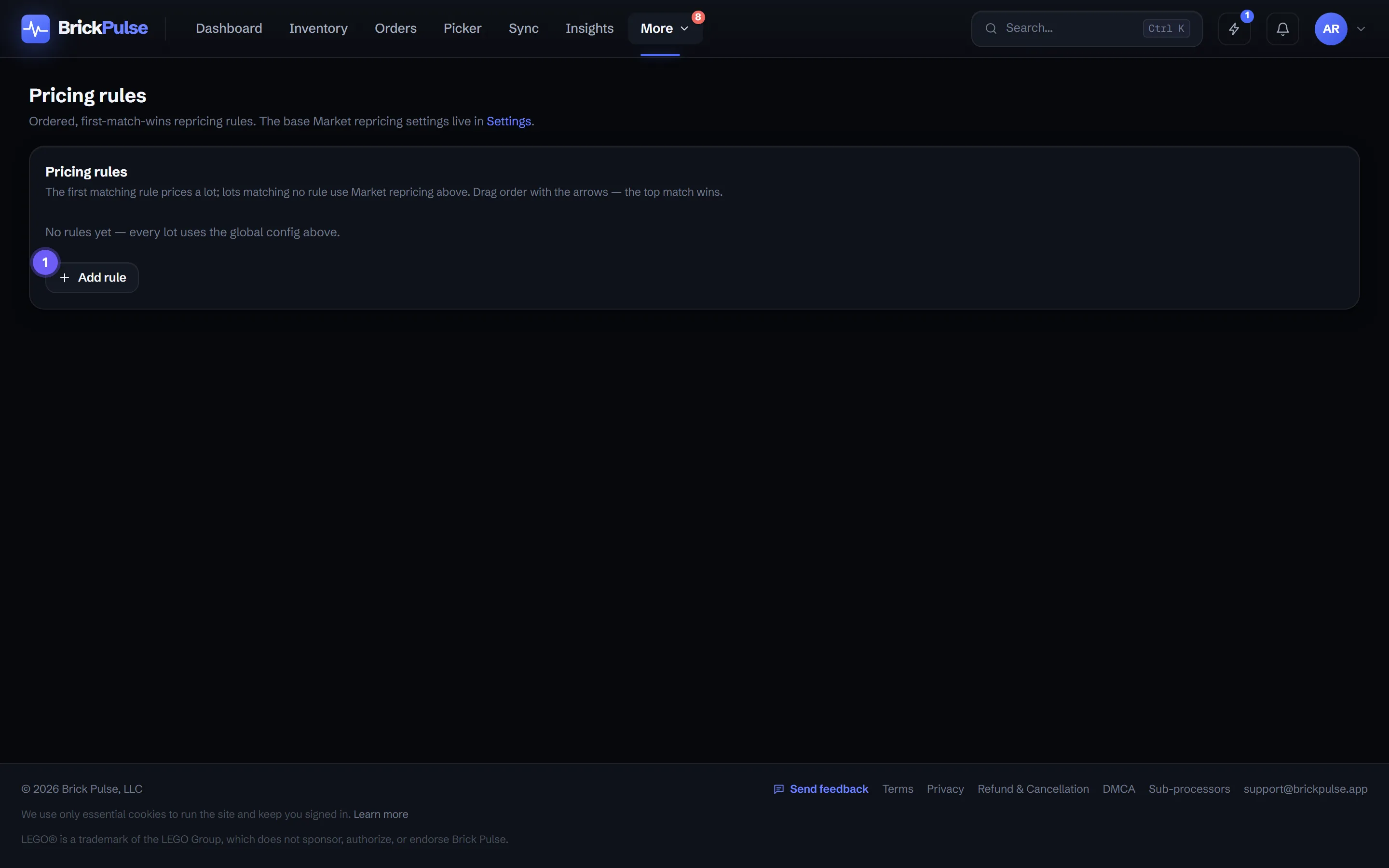
How the order works: the waterfall
Rules are ordered and tried top to bottom. BrickPulse walks down the list and uses the first rule that both matches a lot and can actually produce a price for it, using that rule’s strategy, target percent, and guards.
If a rule matches a lot but can’t price it (for example there isn’t enough sold data behind its strategy), BrickPulse doesn’t stop there: it moves on to the next matching rule, and keeps going down the list. If no matching rule can price the lot, it falls through to your base Market repricing. A lot that matches no rule at all also uses the base Market repricing.
Reorder rules with the up and down arrows so the rule you want tried first sits highest. When you reprice, each repriced line shows which rule set its price, so you can see exactly where a lot landed in the waterfall.
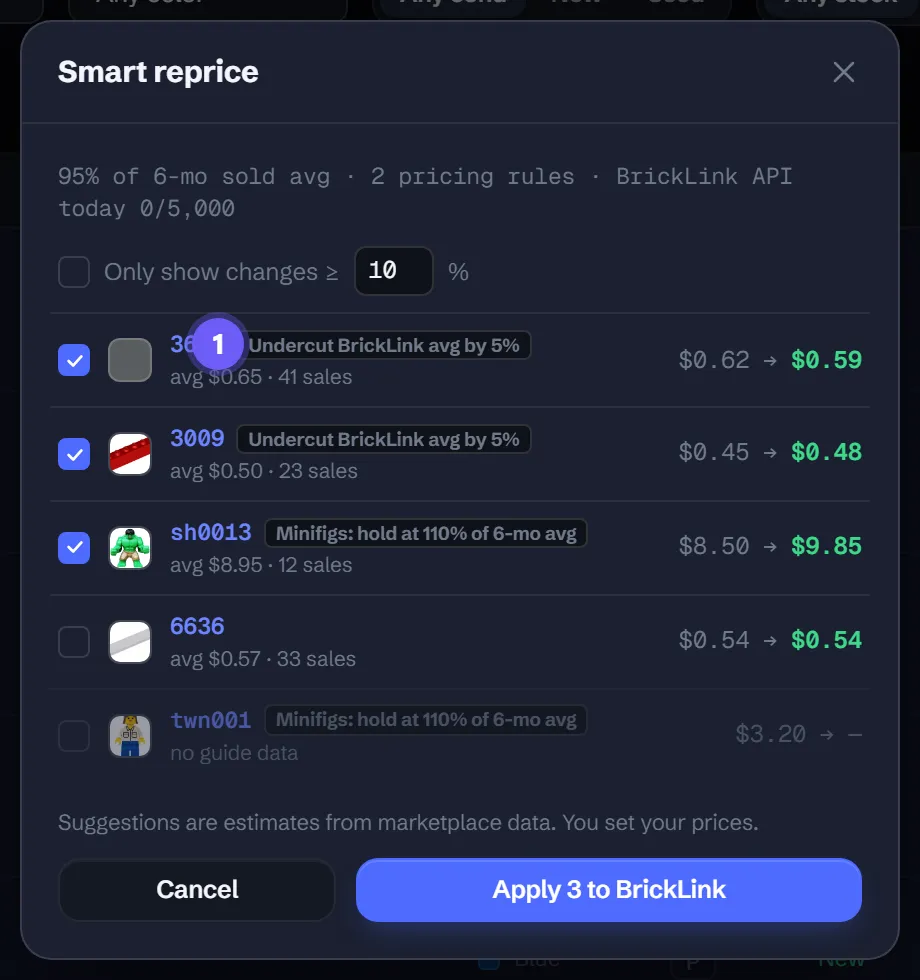
1 marks the rule that priced each lot. A lot with no chip fell through to your base Market repricing.
What “can’t price a lot” means
A rule can match a lot on its filters but still be unable to set a price, most often because its strategy needs sold-average data the item doesn’t have (a thin-data item, or a region with no sales for it). Rather than leave the lot unchanged, the waterfall hands it to the next matching rule, and finally to your base config, so a lot is priced by the most specific rule that has the data to do it.
What a rule can match
Set any combination of filters (leave them empty to match all lots):
- Item type (part, minifig, set, gear, book) and condition (new or used).
- Color and part category (for example Tile, Brick, Plate).
- On-hand quantity range and current price range.
- Remarks contain a piece of text.
- Exclude lots in a stockroom. Excluded lots fall through to your other rules or the base formula, so a held-back stockroom stays out of that rule.
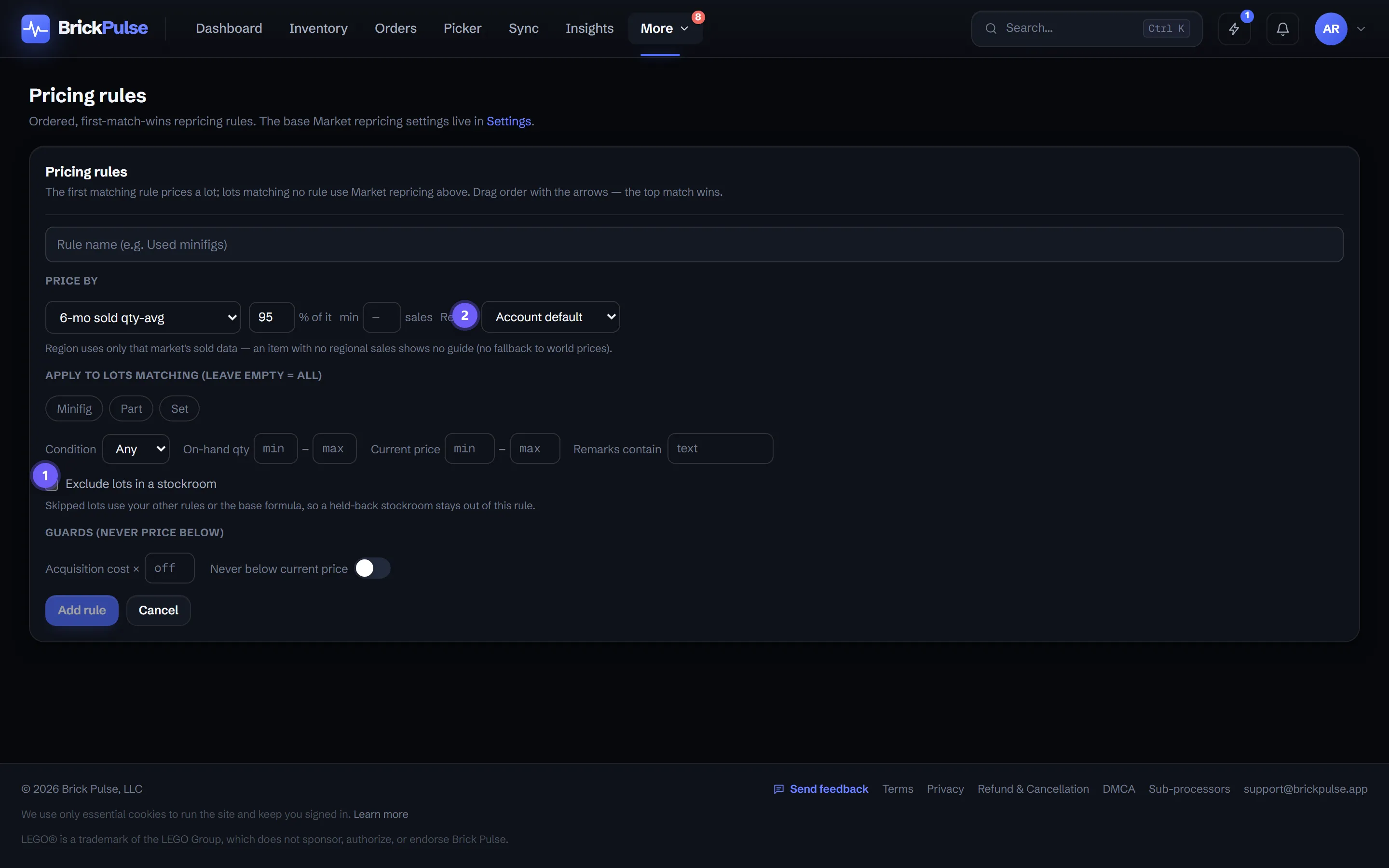
In the editor above, 1 marks the “Exclude lots in a stockroom” checkbox and 2 marks the price-guide region dropdown.
How a rule prices
Each rule sets its own approach:
- Strategy and target percent, including sell-through-aware strategies.
- An optional price-guide region override, with Account default first. A rule can price off a specific region’s averages, and a region never silently falls back to world prices. If that region has no data for an item, the rule can’t price it, and the lot moves on down the waterfall to the next matching rule or your base config.
- Guards so nothing goes too low: a floor at a multiple of acquisition cost, and “never below current price”.
Preview before it applies
The reprice preview shows exactly which rule set each price, before anything is applied. Because a lot can fall past a rule that couldn’t price it, the preview is the fastest way to confirm the waterfall landed each lot where you expected. Check the preview, confirm the rule you expected priced each lot, then apply.
What prices a lot that matches no rule?
Your base Market repricing. Rules are additive: they only take over for the lots they match. Everything else falls through to the base formula in Settings.
What happens if a rule matches a lot but can't price it (not enough data)?
BrickPulse moves on to the next rule that matches the lot, and if none of them can price it, to your base Market repricing. A rule that can't produce a price no longer just leaves the lot unpriced. This is the waterfall.
Which rule wins when several match?
The first rule from the top that can actually price the lot. Rules are tried in order, so if the top match can't price a lot, the next matching rule gets a turn. Reorder with the up and down arrows so the rule you want tried first sits highest.