
Running a shelf count
How to run a guided, bin-by-bin shelf count in BrickPulse, catch variances, and reconcile your real shelves to your records.
Over time, real shelves drift from your records. A guided shelf count brings them back together, and you can do it alongside normal operations.
- Start a shelf count and work bin by bin, in order, so nothing gets skipped.
- Count each bin: camera scanning speeds this up as you go.
- BrickPulse shows you the variances between what you counted and what your records say.
- Reconcile the corrected counts to your master inventory, which then syncs the updated numbers out to your channels.
Before you start
- A shelf count compares what’s physically on your shelves against your BrickPulse master inventory, so it’s most useful once your inventory is imported and settled.
- You can count while the shop keeps running. A shelf count doesn’t freeze your inventory or pause sync; you reconcile the differences at the end.
- Counting works on your phone too, so you can walk the shelves with the count list in hand. See Scan with your phone.
Work in a session
A shelf count runs as a session you start and can come back to. Work through it bin by bin in order, and if you stop partway, your progress is kept so you can resume later rather than starting over. That makes it practical to count a large store across more than one sitting.
Count each bin
The count list walks you through your lots grouped so you’re not hunting. Each lot on the list shows its bin location, so the item in front of you is the item on the screen and you can confirm you’re counting the right shelf. Enter the quantity you actually find for each lot, and use camera scanning to speed intake as you go.
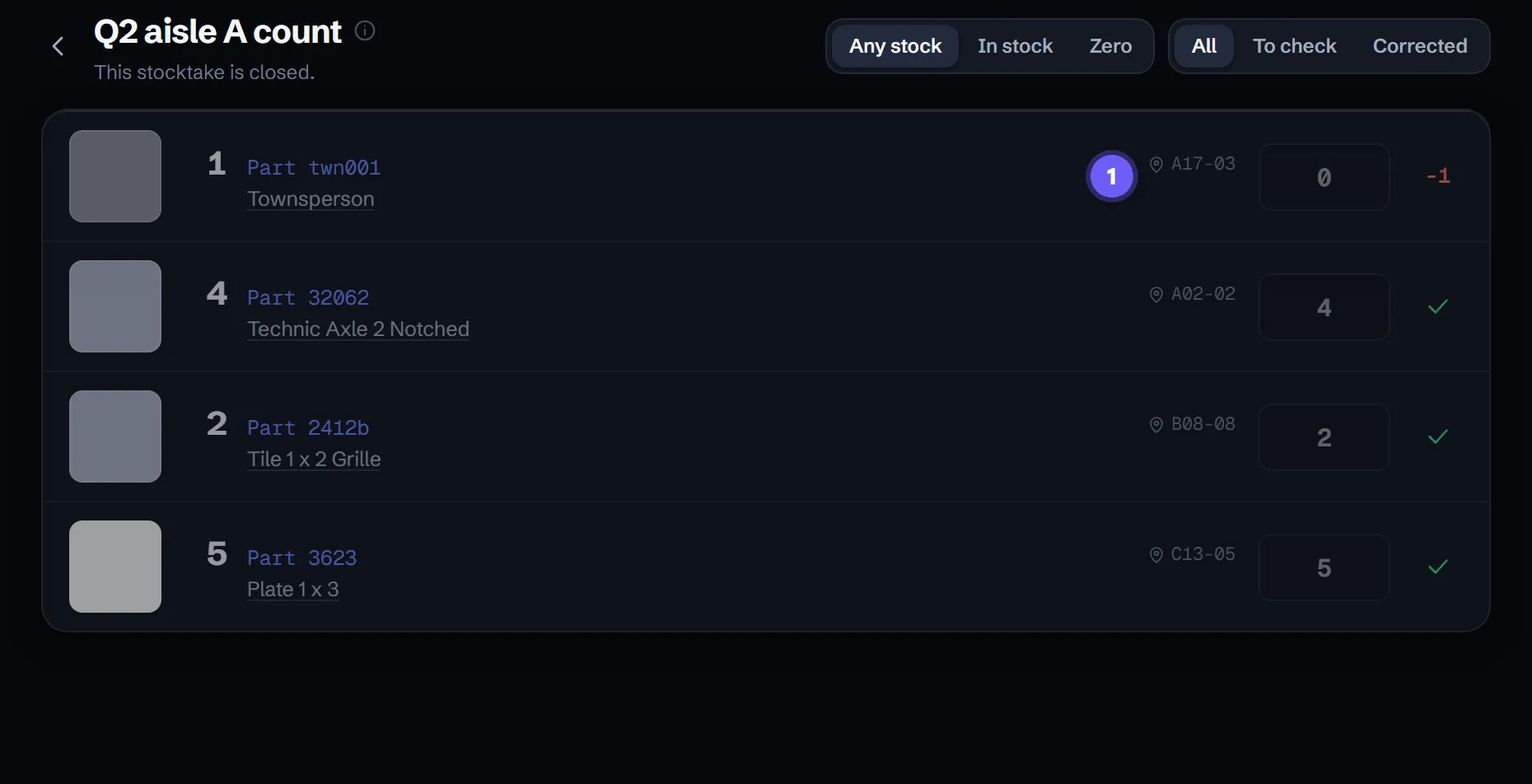
1 marks the bin location on each count row, so the item in front of you matches the row on screen.
Review variances and reconcile
When you’ve counted, BrickPulse shows the variances: where your counted quantity differs from what your records say, and by how much. Review them, then reconcile the corrected counts into your master inventory. Because the master is the source of truth, the corrected numbers then sync out to your channels on the next run, so your live listings match your real shelves.
Turn a variance you want to chase into a task so it doesn’t get lost, and remember that shelf count adjustments are recorded in your inventory history like any other change.
Tips
- Count in a consistent order that follows your physical storage, so a whole session moves in one direction through the room.
- Good lighting and a plain background make camera scanning more reliable (see Camera scanning).
- You don’t have to count everything at once. A rolling shelf count, a section at a time, keeps records honest without a big shutdown.